
# Assignment List
# 1. Github Hosting
Start by downloading this project in a .zip file.
You will be turning this project into your own hosted Github website.
Expand the zip folder and open the folder in VSCode.
Next, edit the index.html file and add your name in the <header> <h2>. Then save the edits.
Next, you will need to turn this project folder into a Git project by opening the Terminal panel in VSCode and running the git init command. Now your project IS a git repository.
Now add a .gitignore file at the root of your project folder. The .gitignore file should contain these two lines:
.DS_Store
node_modules/
2
Then run the git add and git commit commands so Git will be tracking your project files and recording the changes.
Now you need to set up a connection between Github and this Git repository. Do this by visiting the Github website (opens new window). Make sure you are logged in to the website using the
Github account that you created with your @algonquinlive.com email address.
Create a new PUBLIC Github Repository WITHOUT a Readme file and WITHOUT any licence information.
Save the URL of your new public github repository and go back to VSCODE.
Run the command in the terminal panel:
git remote add origin <URL-OF-YOUR-GITHUB-REPO>
Once you have added the remote url to your local git repo, now you can upload the project to Github from the Terminal panel. Here is the command to upload your project
git push origin main
You should be able to refresh the Github repository webpage in the browser and immediately see the uploaded files.
Now in your index.html file under the main create a section and add the following information:
- A professional image of yourself
- Description list with the following information
- Student number
- Program name you are taking
- Course code and name in which you are completing this assignment
- one interesting fact about you
Proceed by repeating the stages of staging, committing, and pushing your recent changes to the GitHub repository. This action will result in a new commit.
Next, go to the Settings tab for your Github copy of the repository and look for the menu entry called Pages. It should look like this:

Set it to point to your main branch at the /root and click Save.
The page should display the URL for the hosted version of the project.
Within a couple minutes you should be able to see the actual hosted version of the project. If you click on the actions tab at the top, then you can see if the creation of the site is pending, being
processed, or complete.
Note If you set your repository to PRIVATE then you will need to have also created your Github Education account AND you will need to go to the
Collaboratorssection of the settings plus add your instructor as a collaborator for the project so they can access your repository.
# Submission
Due Date **Week 6**
(See BS LMS for exact date)
You will need to post TWO URLS in BS LMS on the assignments page as your submission.
- The URL for the Repo.
- The URL for the hosted Github Pages website.
# 2. Display data
Create a private repo named mad9014-w24-assignment2 and clone it to your device. (make sure to add a readme file containing a small description of your project.)
Add HTML, CSS, and two JS files (one for data and one for your regular JS). JS files and CSS files can be in individual folders. So at the root level, you will have index.html, .gitignore, and readme files plus CSS and js folders.
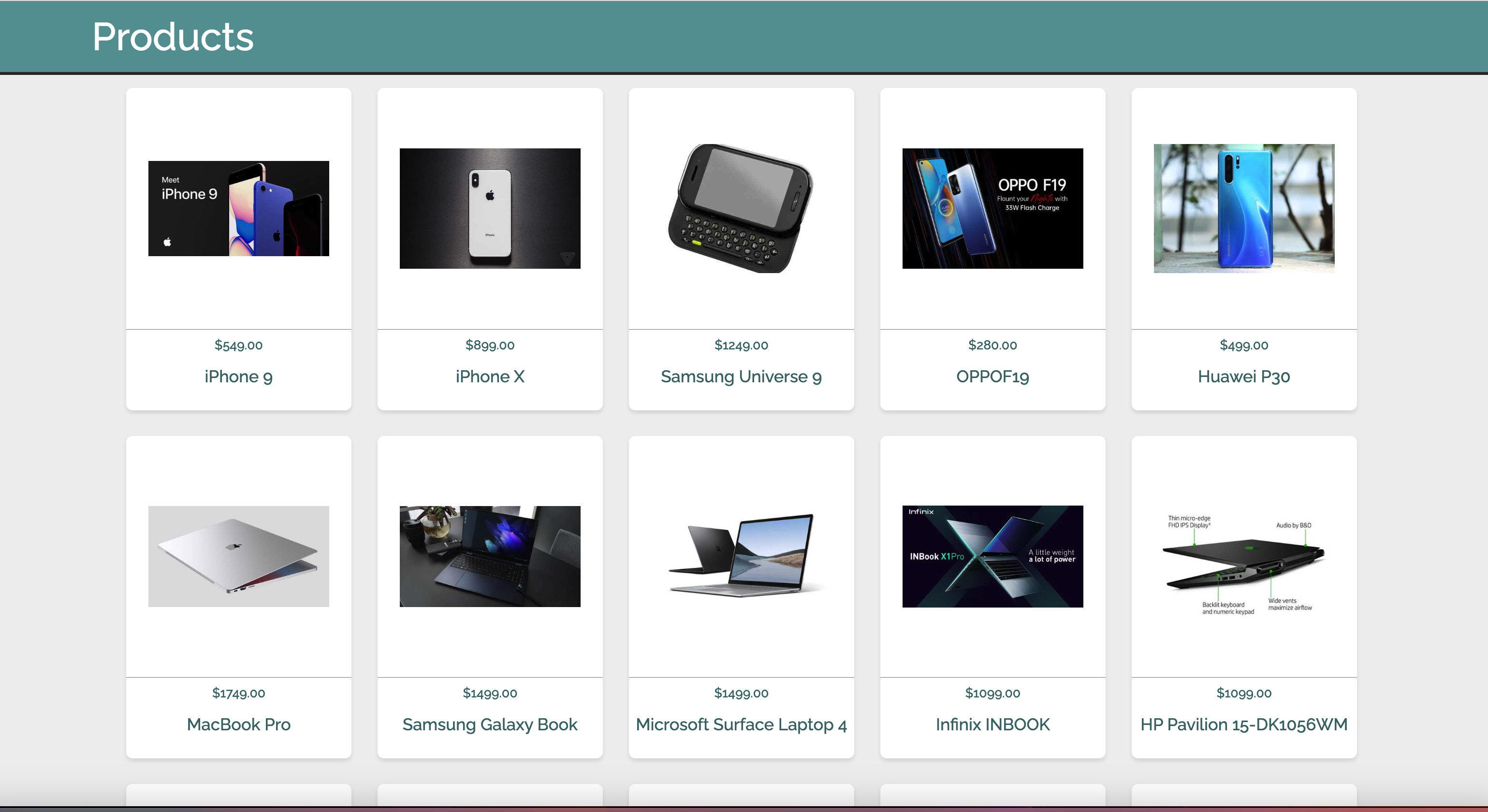
In the index.html file create a header (that will hold an h1) and main will contain a div for all cards, (which will contain multiple cards (divs) for individual users).
The .gitignore file should contain these two lines:
.DS_Store
node_modules/
2
Take the data from the data gist (opens new window) and add it to the data.js file. In the main.js, you will write your script. Use a function that gets called after the DOMContentLoaded event to loop through the Array from the data file and create cards for different users. Do not forget to use documentFragment.
Ensure proper HTML tags have been used, and foreground and background colors meet minimum color contrast ratio. Dont forget the alt attribute for img tags.
Always check your code with different automated tools (WAVE (opens new window), Lighthouse, etc) and validator (HTML Validator (opens new window)).
Here is an example of what the page will look like. Keep in mind this is just a demo, feel free to make it better and you can use as many properties as you like from the data. Minimum one image and three text properties are required.
# Starter Code
You can take the starter code from madd9014-w24-assignment4 (opens new window). Use of this code is optional. If you choose to use this code, I will expect you to change the look and feel a bit.
# Submission
Due Date **Week 9**
(See BS LMS for exact date)
Open BS LMS and go to the Activities > Assignments page.
Go to the assignment 2.
Submit URL for private GitHub Repo.
Invite kaura5@algonquincollege.com to your private repo.
# 3. JSON and XML
Create a JavaScript object called person with the following properties:
- Your name (
string) - Age (
number) - Hobbies (
arrayofstrings) - Course (
objectofstringscontaining course codes or names)
Write the JavaScript object person into JSON format.
Write the JavaScript object person into XML format.
Ensure that the JSON and XML representations accurately capture the structure and content of the person object, including its properties and values.
# Submission
Due Date **Week 10**
(See BS LMS for exact date)
Open BS LMS and go to the Activities > Assignments page.
Go to the assignment 3. Copy and paste the solution into the text box in Assignment 3 in BS LMS.
# 4. Fetch Basic
For this assignment you are to use the Github REST APIs (opens new window). The plain
vanilla JS fetch call is simpler for this assignment.
Your assignment is to create a webpage that will make API calls to Github for the list of repositories that belong to a user OR a list of followers for a user.
The URL you will be calling is https://api.github.com/users/{username}/repos OR https://api.github.com/users/{username}/followers. Your webpage should have an <input type="text" /> and a
<button>.
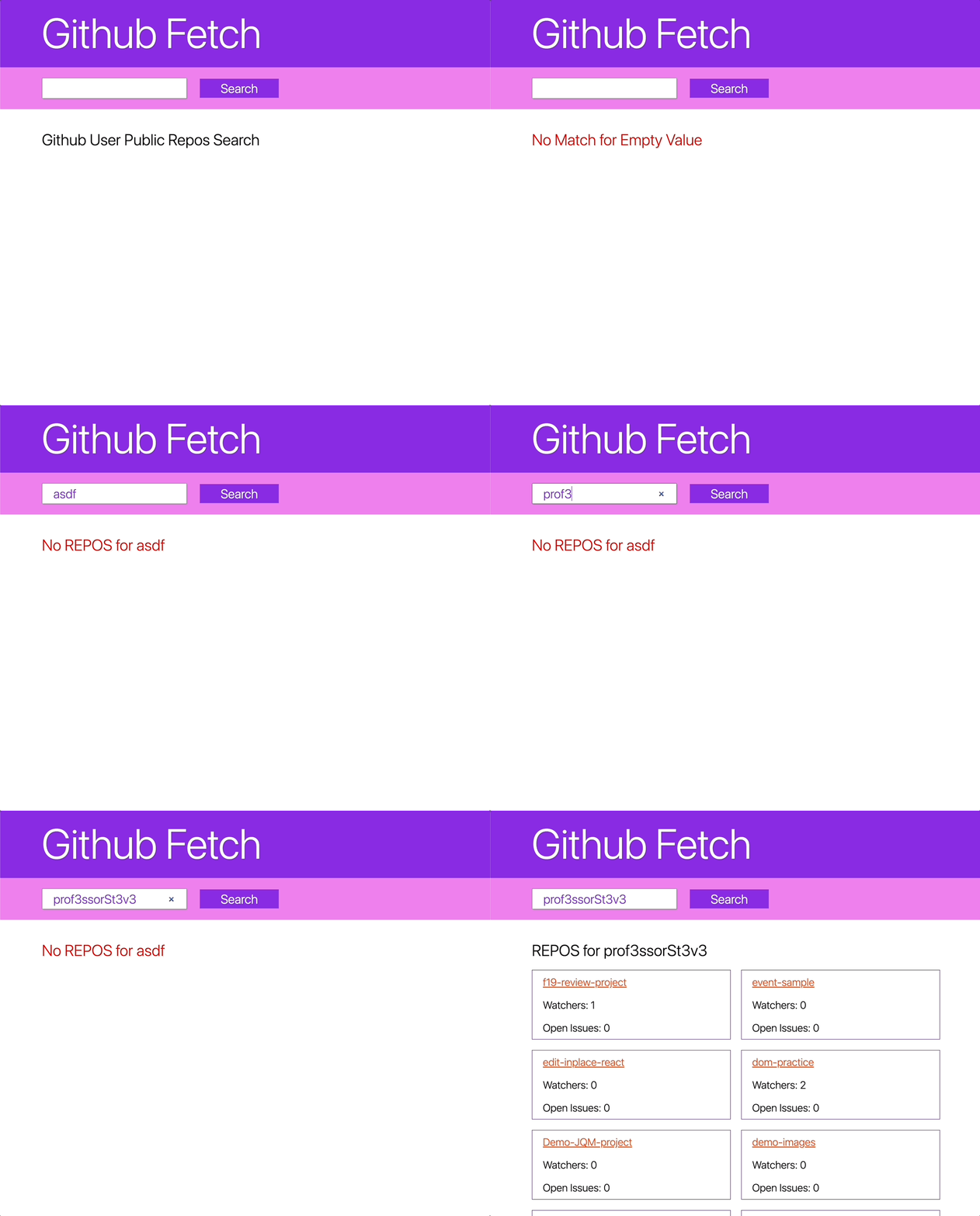
The user will enter a username in the input and then click the button. This needs to trigger the API call. Take whatever the user typed in the input, do a trim() on the value and then put that value
in the URL in place of the {username}.
If the trimmed string value from the input is empty, then do NOT make the fetch call.
If no matches come back, you need to display a message on the page about there being no match.
If you do get a valid list of repos, then display those on the page as a series of HTML elements like this:
<!-- for repo list -->
<li>
  <p><a href="${html_url}" target="_blank">${name}</a></p>
  <p>Watchers: ${watchers}</p>
  <p>Open Issues: ${open_issues}</p>
</li>
2
3
4
5
6
7
The text in the anchors should be the name or login property of the repo object. The value of the href attribute should use https://www.github.com/ plus the value from the full_name or url
property as the link. The value of the img src attribute should use the value from the avatar_url property.
# Demo Animation
This screen capture shows the idea behind what your web app should be doing.
# Submission
Due Date **Week 11**
(See BS LMS for exact date)
Create a private Github Repo called mad9014-w24-fetch-github.
After you have uploaded your code, go to the Settings page and click on the Collaborators link in the left-hand menu. Add your instructor as a collaborator to your repo.
Open BS LMS and go to the Activities > Assignments page.
Go to the Fetch Github assignment and submit the link to your repository into the text area. Then submit the form and look for confirmation.
# 5. Cocktail Collection Assignment
Objective:
The objective of this assignment is to create a web application where users can search for their favorite cocktail recipes. The application should provide instructions on how to make the cocktails and allow users to save their favorite recipes. For this assignment, you are to use Cocktail API (opens new window) and for searching different recipes you can use URL (opens new window).
Instructions:
Upon loading the web page, provide an introductory message explaining the purpose of the application and how users can search for cocktail recipes.
Search Functionality:
Include a search field where users can enter the name of their favorite cocktail. If the search term is invalid (e.g., empty), display a message informing the user that the search was invalid.
Displaying Results:
If no results are found for the searched term, display a message informing the user that there were no results for their search. Encourage them to try a different search term.
If results are found, display the images and names of the cocktails on the page. Make both the image and drink names clickable.
Dialog/Modal for Drink Information:
When a user clicks on the image or drink name, open a dialog/modal with more information about the drink.
The dialog/modal should contain instructions on how to make the drink and provide two buttons: one to cancel the modal and one to save the recipe in localStorage.
Hint: HTML Dialogs (opens new window), localStorage (opens new window).
Save Button in Navigation:
Include a "Save" button near the top navigation.
When the user clicks the "Save" button, a message is displayed if there are no saved recipes.
If there are saved recipes, display the list of drinks. Make each drink clickable. Clicking on a saved drink should open a modal/dialog with the drink's information. This time, only include a cancel button.
Additional Instructions:
Utilize document fragments to optimize DOM manipulation and improve performance.
Add an indication to show if the user is on the search results page or the saved results page.
Pay attention to accessibility standards (color contrast ratio, alt text for the image, proper heading structure, etc).
Provide clear and concise error messages to guide users through the application. CSS is required to make it usable.
# Submission
Due Date **Week 13**
(See BS LMS for exact date)
Create a private Github Repo called mad9014-w24-cocktail-collection.
After you have uploaded your code, go to the Settings page and click on the Collaborators link in the left-hand menu. Add your instructor as a collaborator to your repo.
Open BS LMS and go to the Activities > Assignments page.
Go to the assignment5 and submit the link to your repository into the text area. Then submit the form and look for confirmation.